
Copying
This section describes how to load originals and copy them to plain paper.
-
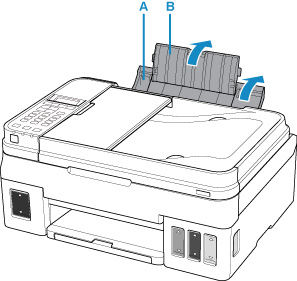
Open the paper support (A) and paper support extension (B).
-
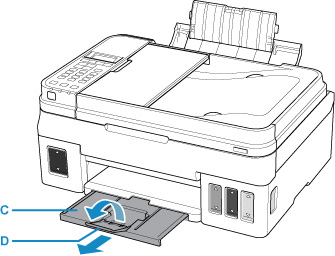
Pull out the paper output tray (C) and open the output tray extension (D).
-
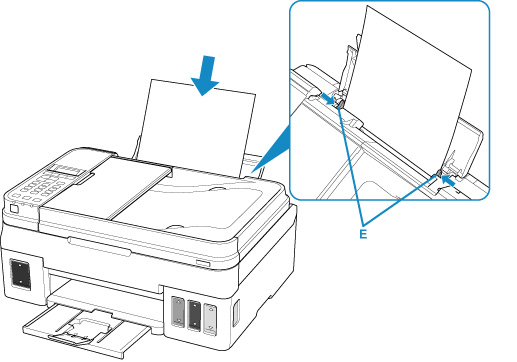
Load paper WITH THE PRINT SIDE FACING UP.
-
Align the paper guides (E) with the paper width.
After loading paper on the rear tray, the paper information registration screen for the rear tray is displayed on the LCD.
-
Press the OK button.

-
Use the

 button to select the size of the loaded paper on the rear tray, then press the OK button.
 Note
Note-
The
 (asterisk) on the LCD indicates the current setting.
-
-
Use the
button to select the type of the loaded paper on the rear tray, then press the OK button.
-
Press the COPY button (F).

-
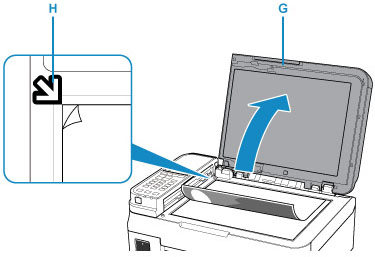
Open the document cover (G).
-
Load the original WITH THE SIDE TO COPY FACING DOWN and align it with the alignment mark (H).
-
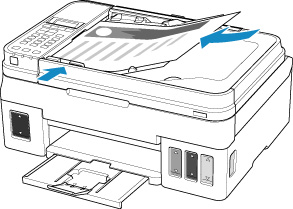
To copy two or more documents continuously, load them in the ADF (Auto Document Feeder).
-
Close the document cover.
-
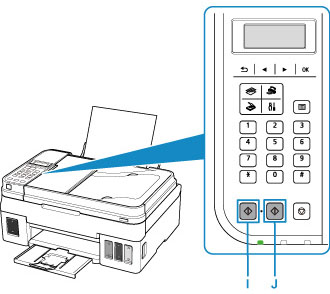
Press the Black button (I) or Color button (J).
Note
 Important
-
Do not open the document cover until copying is complete.
Note
-
Your printer is equipped with many other convenient copy features.
